
Lesson 4: Connecting Expert Advisors to MT5
Using Expert Advisors on MetaTrader 5: A Practical Setup Guide
Automated trading is no longer limited to institutional trading desks. Modern platforms such as MetaTrader 5 (MT5) give individual users access to tools that can monitor markets, apply predefined rules and automate selected parts of the trading process.
MT5 combines charting and order execution with an integrated environment for algorithmic trading. Through MQL5, its native programming language, users can build or run custom indicators, scripts, services and Expert Advisors.
An Expert Advisor is particularly useful when a trading process needs to be translated into repeatable, rule-based actions.
This guide explains how algorithmic trading works within MT5, what an Expert Advisor is designed to do, and the practical steps required to install, load and check one on the platform.
1. Understanding Algorithmic Trading in MT5
1.1 MT5 as an Algorithmic Trading Environment
MetaTrader 5 is a multi-asset trading platform that combines manual trading tools with programmable functionality.
Depending on the broker and available instruments, the platform may be used to access markets such as:
Foreign exchange
Metals
Indices
Shares
Futures
Other financial products
Its algorithmic features allow a program to evaluate market information and respond when predefined conditions are satisfied.
The programming layer behind this functionality is MQL5. It can be used to create:
Indicators for analysis
Scripts for specific tasks
Background services
Expert Advisors that automate part or all of a trading workflow

1.2 What Does Algorithmic Trading Mean?
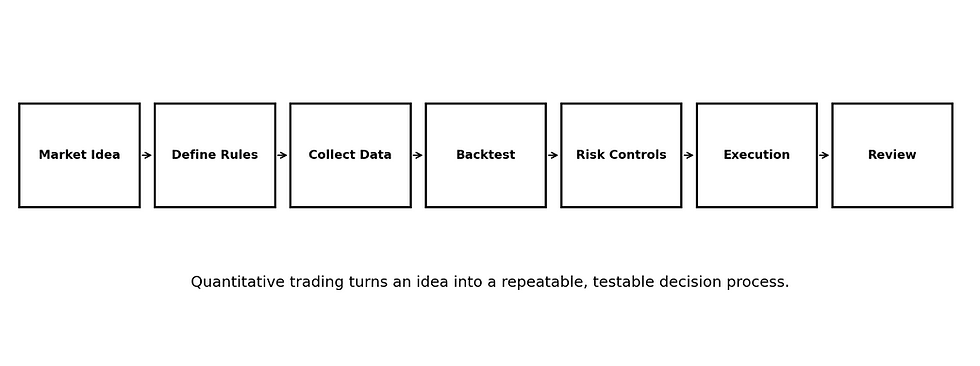
In practical terms, algorithmic trading means converting a trading process into explicit rules that software can evaluate consistently.
Instead of relying on a user to watch every price movement, the program checks the conditions specified by its logic and performs the permitted action when those conditions are met.
Depending on how the system is designed, automated functions may include:
Monitoring predefined signal conditions
Sending or managing entry orders
Closing or reducing open positions
Applying stop-loss and take-profit instructions
Calculating or adjusting position size
Enforcing selected risk-management rules
Producing alerts, notifications or status messages
1.3 Why Use Algorithmic Tools in MT5?
The main value of automation is consistency.
A correctly configured Expert Advisor can repeatedly apply the same programmed logic, monitor conditions without continuous manual input and support a more structured research and execution process.
Feature | How it works | Practical value |
Rule-based execution | The EA follows programmed conditions and can submit actions when those conditions are satisfied. | Creates a repeatable execution process and reduces manual intervention. |
Continuous monitoring | The program can evaluate incoming market information while the platform and required connection are active. | Reduces the need to watch the same conditions manually for long periods. |
Consistent decision logic | Programmed rules are applied without changing because of fear, hesitation or impulse. | Supports discipline, although the programmed rules themselves can still be flawed. |
Historical testing | EA logic can be evaluated with historical data through MT5 testing tools. | Allows users to examine behaviour and risk before considering live deployment. |
Flexible deployment | An EA can be configured for selected instruments, charts and timeframes when its design supports them. | Makes one rule-based framework easier to test across different settings. |
Integrated risk controls | Developers can include stops, sizing rules, session limits, exposure checks and other safeguards. | Allows execution logic and risk-management rules to operate within one system. |
2. Understanding Expert Advisors
2.1 What Is an Expert Advisor?
EA stands for Expert Advisor. Within MT5, it refers to an MQL5 program designed to automate trading-related decisions or actions.
An EA can read market information, evaluate programmed conditions and respond according to its instructions.
Some EAs automate an entire process from signal detection to order management, while others are designed only to assist with selected tasks such as exits, alerts or risk controls.
It is important to separate the software from the strategy:
An EA is the mechanism that executes programmed logic; it is not, by itself, a profitable strategy.
Results depend on the quality of the underlying rules, parameters, execution conditions, market environment and risk controls.
2.2 What Can an EA Be Designed to Do?
EA functionality varies considerably. A program may:
Monitor technical conditions
Open or close positions
Place protective orders
Trail stops
Manage existing exposure
Restrict trading to selected sessions
Perform account-level checks
For example, an EA might wait until a defined indicator condition is satisfied before allowing an entry. It could then manage the position using predetermined stop-loss, take-profit or exit rules.
More advanced designs may also prevent new trades when specified account-risk thresholds or operational conditions are reached.

3. Installing and Connecting an EA to MT5
Installing an EA is easier to understand as a short workflow:
Make the file available to MT5.
Compile it when necessary.
Refresh the platform.
Attach the EA to the appropriate chart.
Confirm that algorithmic-trading permissions are enabled.
3.1 Step 1: Open the MT5 Data Folder
From the MT5 desktop platform, open the top menu and select:
File → Open Data Folder
MT5 will open the data directory used by that terminal installation. This is preferable to manually guessing where the program files are stored.
Inside the data directory, navigate to:
MQL5 → Experts
The Experts directory is the standard location for EA files. Placing the EA here allows MT5 to display it under the Expert Advisors section of the Navigator once the platform has refreshed.
3.2 Step 2: Add the EA File
Two file types are commonly encountered when installing an EA: .ex5 and .mq5.
Using an .ex5 File
An .ex5 file is the compiled executable version of an MQL5 program.
In a typical installation, copy the file into:
MQL5 → Experts
After copying it, return to MT5 and refresh the Expert Advisors list or restart the terminal.
Using an .mq5 File
An .mq5 file contains MQL5 source code.
Before MT5 can run it as an EA, the source normally needs to be opened in MetaEditor and compiled into an .ex5 executable file.
Typical workflow:
Open MetaEditor.
Open the .mq5 source file.
Select Compile.
Check for compilation errors.
Generate the .ex5 file.
Return to MT5.
3.3 Step 3: Refresh MT5
Once the file is in the correct folder, refresh the Navigator so that MT5 scans the directory again.
In the Navigator:
Locate Expert Advisors.
Right-click the section.
Select Refresh.

Alternatively, closing and reopening the MT5 terminal will normally trigger a fresh scan of the program files.
If the file has been installed and compiled correctly, the EA should then appear by name in the Expert Advisors list.
3.4 Step 4: Attach the EA to a Chart
After the EA appears in the Navigator, open the chart on which you want the program to operate and select the intended timeframe.
Typical sequence:
Open the instrument chart.
Select the timeframe.
Find the EA in Navigator.
Drag the EA onto the chart.
Review the input and permission settings.
Select OK.

Most EAs operate in the context of the chart to which they are attached.
This is different from MQL5 service programs, which are designed to run independently in the background.
3.5 Step 5: Enable Algorithmic Trading
Attaching the EA to a chart is not enough on its own.
Check that the platform’s Algo Trading control is enabled and review any EA-specific permissions shown in its settings.
If algorithmic trading is disabled at the platform level, an EA may still appear on the chart but will not be permitted to submit automated trade instructions.

3.6 How to Check Whether the EA Is Active
If the EA has been installed but you are unsure whether it is operating correctly, review the following:
Confirm that the EA is attached to the intended chart and that its name or status is visible where applicable.
Review the Experts messages in the Toolbox for EA-generated information.
Check the Journal for platform or execution-related errors.
Look for messages relating to permissions, invalid parameters, connectivity or order execution.
An EA does not need to place a trade immediately after it is attached.
If the program is active but its entry conditions have not been satisfied, waiting without an order may be the expected behaviour. Logs and status messages are therefore more useful than judging the connection only by whether a trade appears.
4. Important Risk Considerations
An EA automates instructions. It does not remove market risk or guarantee profitable results.
Automated systems can:
Generate losses
Behave differently when market conditions change
Encounter execution problems
Be affected by connectivity issues
Be affected by incorrect configuration
Before using an EA, users should understand:
Its strategy logic
Its parameters
Its position-sizing method
Its risk limits
The environment in which it will operate
Historical or backtested performance should not be treated as a guarantee of future results.
5. Troubleshooting and Support
If an EA does not appear, compile, attach or operate as expected, review:
The file location
Compilation messages
Algo Trading permissions
EA input settings
The Experts log
The Journal
If the issue remains unresolved, contact the relevant technical-support provider and include any error messages that can help identify the problem.
Key Takeaways
MT5 combines manual trading tools with an environment for programmable trading.
MQL5 is the platform’s native language for creating indicators, scripts, services and Expert Advisors.
An EA applies programmed rules; it is not inherently a profitable strategy.
EA files generally belong in the MQL5 → Experts folder.
An .ex5 file is compiled, while an .mq5 file normally needs to be compiled in MetaEditor.
MT5 must refresh before a newly installed EA appears in Navigator.
The EA must be attached to the correct chart and timeframe.
Platform-level and EA-level algorithmic-trading permissions must be enabled.
Logs and status messages are more reliable than expecting an immediate order.
Automation does not remove execution, configuration or market risk.
Educational Notice: This material is provided for educational purposes only. It explains general concepts related to MetaTrader 5, Expert Advisors and algorithmic-trading setup. It does not constitute investment advice, a personal recommendation or a guarantee of performance. Automated, historical, simulated and backtested results do not guarantee future outcomes. Trading, particularly with leveraged products, involves significant risk.


Comments